
Syncing and Handling Sessions
Last updated 25 October 2024 Read time 2 min
- Contents
- Overview
- Syncing with Google Calendar
- Canceling a Session
Overview
To help you manage your schedule seamlessly, Toedur offers options for syncing with Google Calendar and guidelines for canceling sessions when needed.
Syncing with Google Calendar
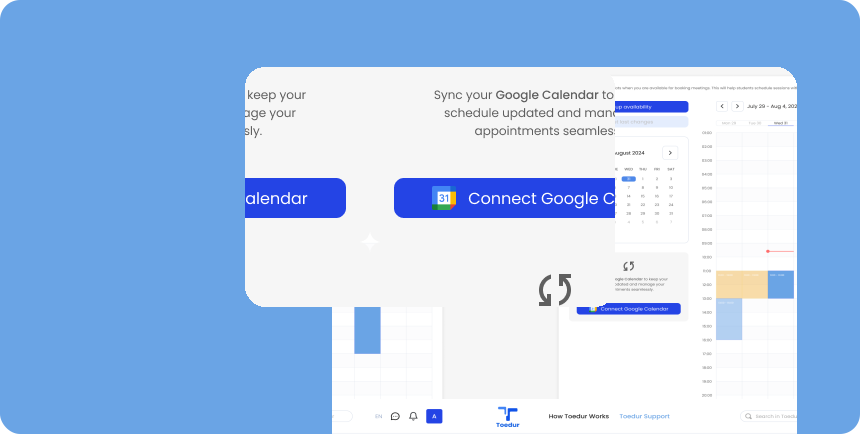
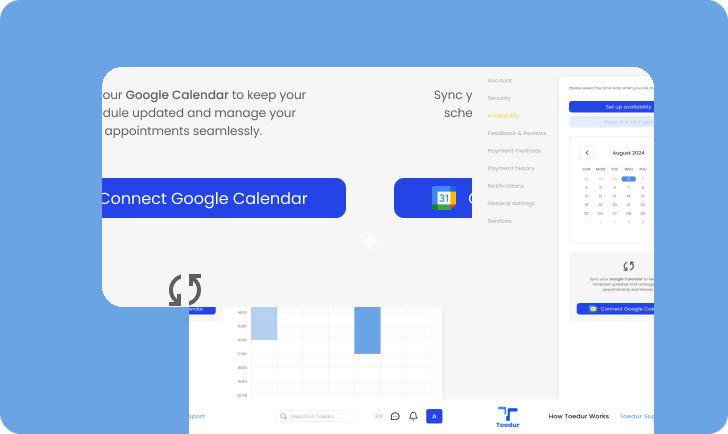
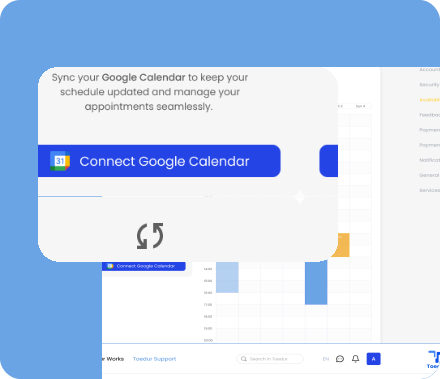
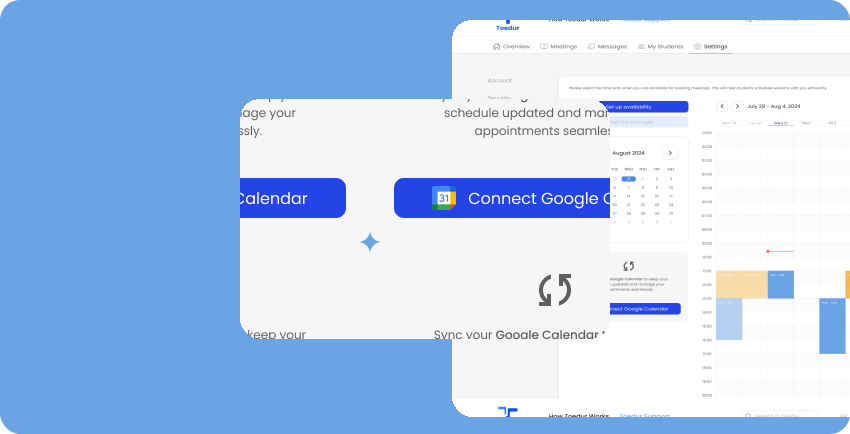
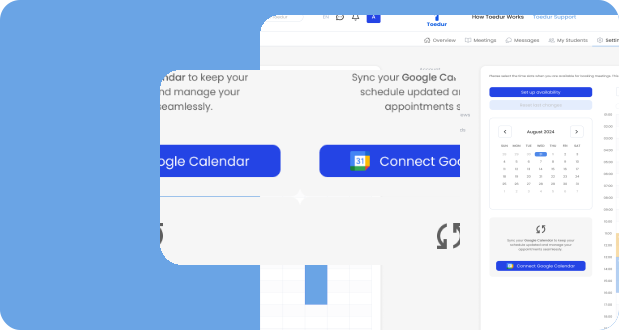
Easily keep track of your sessions by syncing your Toedur calendar with Google Calendar:
- How to Sync: Go to your account settings and select the “Calendar Sync” option. Follow the instructions to link Toedur to your Google Calendar.
- Stay Up-to-Date: Syncing ensures you receive reminders for upcoming sessions, helping you avoid conflicts and manage your time efficiently.
- Auto-Updates: Any changes to your Toedur schedule will automatically update in your Google Calendar, so you’re always in the loop.
Canceling a Session
If you need to cancel a session, follow these steps to ensure a smooth experience for both you and the student:
- Notify the Student Early: Whenever possible, cancel with enough notice so the student has time to adjust their plans.
- Provide a Reason (if needed): Briefly explain the reason if appropriate; this can help maintain trust.
- Reschedule Options: Offer to reschedule the session if you’re available at another time, showing your commitment to helping the student.
Give us feedback
Was this article useful?
Next Article

Handling No-Shows and Time Zones
Learn about Handling No-Shows and Time Zones
Last updated 10 October 2024Read time : 2 min