
Zoom Integration
Last updated 25 October 2024 Read time 2 min
- Contents
- Overview
- Connecting Your Zoom Account
- Managing Your Connected Zoom Account
Overview
At Toedur, we conduct our meetings through Zoom. To enable Edurs to seamlessly schedule and manage meetings, they need to integrate their Zoom accounts with Toedur. This guide will walk you through the steps to connect your Zoom account and manage it within Toedur.
Connecting Your Zoom Account
Easily set up Zoom integration with Toedur by following these steps:
How to connect
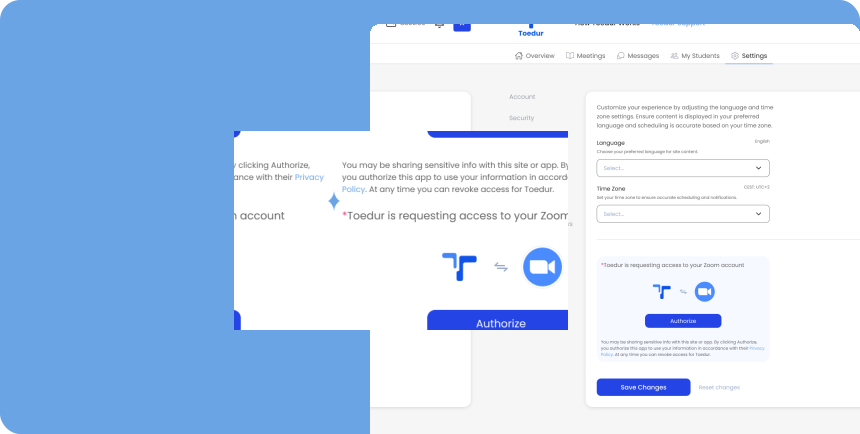
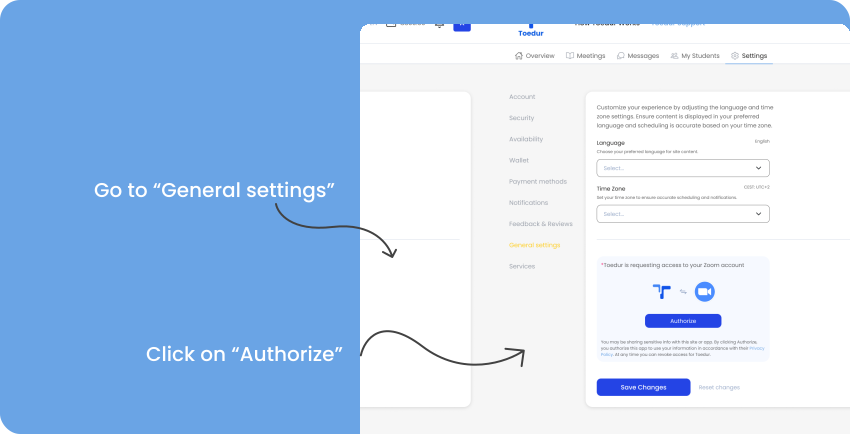
- 1. Go to your Edur Management Panel.
- 2. Click on Settings and select General Settings.
- 3. Find the Zoom Integration section and click "Authorize".
- 4. You will be redirected to Zoom’s authorization page.
- 5. Log in to your Zoom account and grant the necessary permissions.
- 6. Once authorized, you will be automatically redirected back to General Settings.
- 7. Your Zoom account is now successfully linked to Toedur.
Managing Your Connected Zoom Account
Once your account is connected, you will see your account information displayed, including:
Additionally, a "Deauthorize" button will appear, allowing you to disconnect your Zoom account from Toedur if needed.
Using Zoom on Toedur
- Schedule Meetings: Set up meetings directly through Toedur.
- Stay Notified: View upcoming meetings in your Edur Panel.
- Auto-Updates: Any changes to your Toedur schedule will reflect in Zoom.
- Name
- Zoom Account ID
- Status (Connected)
By integrating your Zoom account with Toedur, you can efficiently manage and conduct meetings within the platform. If you encounter any issues during the setup, please refer to our support team for assistance.
Give us feedback
Was this article useful?
Next Article

Setting and Managing Availability
Learn about Setting and Managing Availability
Last updated 10 October 2024Read time : 2 min